#What you get from your team manager
- The server address, e.g.
example.dyndns.org:8787
- An invite code, e.g.
ABCD-EFGH
#Step 1: Install
- Download
StintView-Setup.exe: https://github.com/ToyYoda/stintview/releases/latest/download/StintView-Setup.exe
- Run the file.
- Windows will probably show "Windows protected your PC". That's because StintView is not digitally signed (yet). Click More info, then Run anyway.
The installation needs no administrator rights and starts StintView afterwards.
#Step 2: Join the team
StintView speaks English and German: it follows your Windows language, and you can switch any time with DE / EN at the top right of the StintView window.
In the StintView window, under Join team, fill in:
- Server address and Invite code from your team manager
- Your name – this is how your team sees you
Then click Join team. Under Status, Team server: connected appears.
The connection to the team server is encrypted. When you join, StintView remembers the team server's certificate and from then on only talks to exactly that server. The Team tab shows Connection: encrypted. There is no cloud: your data only goes to your team manager's team server.
Done. You never need to set anything up again.
Without a team: the displays also work without a team – or while the team server can't be reached. They then show your own sessions on this PC only; the header says "sessions on this PC only". As soon as the team connection is up, they show the teammate in the car again. The same applies when you drive in another iRacing session than your team (e.g. practice while the team races): your displays then show your own session ("The team is in another session – showing yours"); your team doesn't see it. While you drive yourself, your displays always show your own car – even when a teammate is out in the same session at the same time and streams to the team (e.g. two drivers in the same open practice). The header then says "… is driving for the team – showing your own car". Without a team, joining is in the StintView window under the Team tab.
#In every team race
Nothing to do: StintView starts with Windows and runs in the notification area of the taskbar (bottom right, the red "O"; possibly hidden under the ^ arrow).
- Click the icon to open the StintView window with the tabs Status, Displays, Pit stop, Radio, Team and Shortcuts.
- Right-click opens the menu with the same switches and Quit StintView.
As soon as you are in the car, your team sees your data. When you get out, StintView stops sending on its own.
#Two set-ups: driving and watching
StintView keeps two separate settings for the displays – one for driving (e.g. a few panels in VR) and one for watching (e.g. everything on the monitor). Each has its own output (monitor or VR), panel selection, sizes, columns and their order, transparency and panel positions.
- Automatic (default): while you are in the car, "Driving" applies, otherwise "Watching". After you get out, StintView waits 5 seconds so a reset in the pits doesn't flip back and forth.
- Hold one: in the StintView window (Displays tab, Set-up at the top) or in the icon's menu pick one of the two; Automatic switches back. The hotkey Ctrl+Shift+P switches to the other one and holds it (taken? then Ctrl+Alt+P – shown in the window).
- Setting up: in the Displays tab pick the set-up at Edit (the green dot marks the active one). Everything below – output, moving, background, panels – applies to that one. Move displays shows the chosen one meanwhile, even if the other one is active.
- On first start StintView copies your existing settings into both.
#Overlay on your monitor
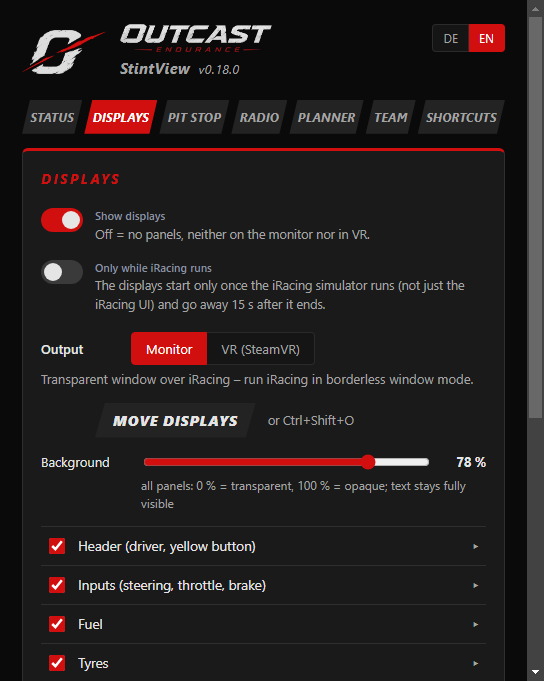
Switch Show displays on and choose Output „Monitor“ (default). In iRacing's graphics options, choose borderless window – in exclusive fullscreen the overlay is invisible. With several monitors (e.g. triple screens) you can drag the displays onto any of them.
Only while iRacing runs: with this switch (StintView window, Displays tab, or the menu) the displays appear only once the iRacing simulator runs – not just the iRacing UI – and go away 15 seconds after it ends. Applies to monitor and VR. Default: off (displays always there).
Moving the displays: click Move displays in the StintView window (or menu), drag the displays with the mouse, then click Done in the yellow banner at the top. To change a display's size, drag the yellow handle at its bottom right corner (50–200 %, same setting as the Size slider in the StintView window).
All keyboard shortcuts: right-click the StintView icon → Keyboard shortcuts … (or the Shortcuts tab in the StintView window). It shows which shortcut StintView actually got on your PC – if one is taken by another program (e.g. AMD Radeon Software), StintView automatically uses a fallback.
Faster via hotkey: Ctrl+Shift+O. If another program already uses it (e.g. AMD Radeon Software), StintView takes Ctrl+Alt+O or Ctrl+Shift+F9 instead – the active one is shown in the StintView window.
Outside edit mode, all clicks go through the overlay to iRacing.
#Jumping to an incident as a spectator
When a car up to about 700 m ahead of your driver is stopped or crawling off track, the overlay header shows INCIDENT AHEAD with car, distance and state (e.g. "#44 Name · 500 m · stopped") and the button To incident. StintView detects this itself on your driver's PC (similar to the iRacing spotter); a yellow flag also triggers YELLOW AHEAD. Clicking points the camera in your iRacing (chase camera "Far Chase") straight at that car – so you can tell your driver on Discord what's going on. Back returns to your driver.
- Requirement: you are watching the team session in iRacing (not driving yourself). Nothing is ever changed for the driver.
- Hotkeys (also in VR): Ctrl+Shift+J = to the incident, Ctrl+Shift+K = back (fallback hotkeys are shown in the StintView window).
- If StintView finds no stopped car ahead of your driver, iRacing shows the latest incident on track.
#Radio: messages to your driver
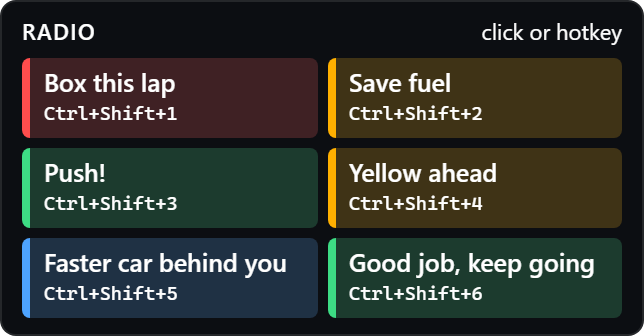
As a spotter you can send your driver short calls that appear large in their overlay – on top of Discord, in case voice comms get busy.
- Set up messages: StintView window → Radio tab. Type a text, pick a colour, reorder with ↑/↓, delete with ✕, Add message (up to 12). For one-off calls there is a free text field at the bottom (not saved). Every message can also be sent right there.
- Sending during the race: show the Radio panel (Displays tab) and click a button – or press the hotkey shown in small print on the button (Ctrl+Shift+1 to 9 for the first nine; fallbacks in the Shortcuts tab). In VR only the hotkeys work.
- Receiving: show the Messages panel – ideally everyone, above all the driver. A message appears there for 10 seconds, large in its colour with the sender, then disappears; otherwise the panel is empty (a placeholder shows while moving the displays).
- While you are driving yourself, the Radio panel is hidden and the hotkeys are off – iRacing keeps all its keys.
- Everyone in the team needs StintView 0.11 or newer for this (including the PC running the team server).
#Stint planner: planning a race
Hidden for now: the stint planner is being reworked, so its tab and menu entry are not shown in the app for the time being.
For team races StintView plans the stints – from your real lap times and from when everyone is available. Every stint gets a driver and a spotter.
- Open it: StintView window → Planner tab → Open stint planner (or right-click the icon → Open stint planner). The planner opens in your browser; you are signed in automatically.
- Lap times: StintView remembers every lap you drive (practice on your own too) and sends it to the team server. Older laps come from your telemetry files (.ibt) with Read lap times (Planner tab). They give your pace (median of your laps within 3 % of your best, dry, no qualifying), your fuel use and how many laps a full tank lasts for you.
- Create a race (usually the team manager): New race → name, track and car (you can choose combinations the team has lap times for), start, length, time lost per pit stop, optionally fuel per stint, and invite team members.
- Enter your time (everyone invited): mark your time in the Availability grid (click or drag), and under Participants set how many stints in a row you want to drive at most – or spotter only. Times are shown in your own time zone.
- Plan (whoever created the race, and the team manager): Plan automatically. A stint is one full tank; the fastest drivers go first, equally fast ones get an even share. Driver and spotter must be available for the whole stint including the pit stop before it. If the plan doesn't work, the top line says why (e.g. "2 × no driver") and the stints concerned are marked.
- Change it by hand: driver, spotter and laps of every stint can be changed; StintView recalculates the times and shows conflicts (not available, too many stints in a row, not enough fuel …). replan from here keeps the stints before and plans the rest again – handy during the race too.
- The team manager needs StintView 0.17 or newer on the PC running the team server.
#Overlay in VR (SteamVR headsets)
Switch Show displays on and choose Output „VR (SteamVR)“ – the displays then appear only in the headset, not on the monitor. Works with anything that runs through SteamVR (e.g. Bigscreen Beyond, Valve Index, Vive, Pimax). StintView connects automatically as soon as SteamVR is running.
The displays appear about 80 cm in front of you, just below eye level. If they float somewhere else in the room: reset the seated position (Ctrl+Shift+R, see below).
Couple recentre with iRacing: iRacing's seat reset only turns iRacing's view, not the displays. To have the displays follow, click Set key/button at Couple recentre with iRacing in the StintView window (Displays tab, output VR) and press the key or wheel button you recentre with in iRacing. From then on StintView also moves the displays to where you look on every press; iRacing still gets the button as usual. After iRacing ends, the SteamVR centre applies again.
Moving the displays – works with the headset on, using the keyboard:
| Keys |
Effect |
| Ctrl+Shift+V |
select the next display (yellow frame) |
| Ctrl+Shift+arrow keys |
left / right / up / down |
| Ctrl+Shift+PgUp / PgDn |
closer / further away |
| Ctrl+Shift+Plus / Minus |
larger / smaller |
| Ctrl+Shift+H |
hide / show all displays |
| Ctrl+Shift+R |
reset SteamVR orientation: look straight ahead and press – your view direction becomes the new centre (also in the StintView icon menu) |
Meta Quest via Link/Air Link without SteamVR is not supported yet.
#What the displays show
- Header: who is driving. Green dot = data is arriving. Yellow = connecting, or data is older than 3 seconds.
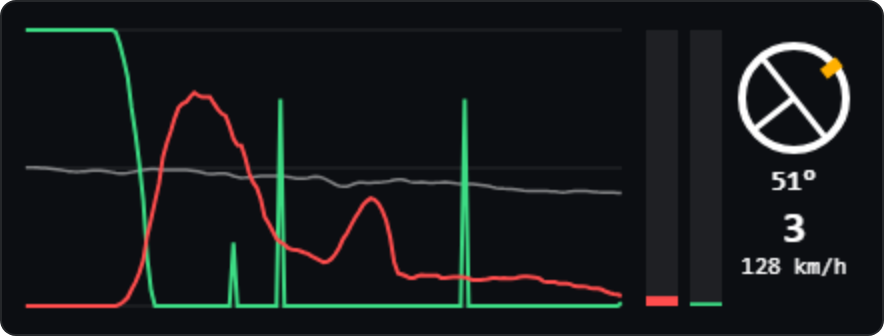
- Inputs: steering wheel, throttle (green), brake (red) live and as a trace of the last 5 seconds.
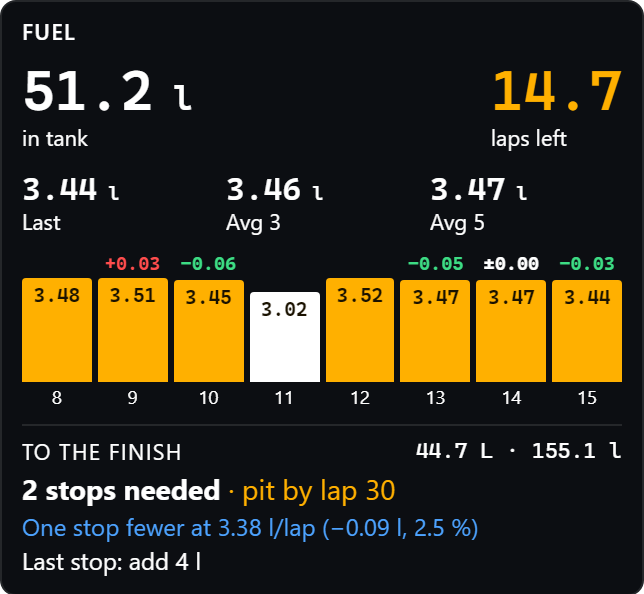
- Fuel: Fuel in the tank, laps left, fuel used last lap / avg of 3 / avg of 5 laps. The bars show the last 8 laps with the litres used; above each, the change to the lap before (green = less, red = more). Grey bars = laps with a pit stop (not included in the averages, no change shown). Lap 0 – the formation lap at a rolling start, or the few metres from the grid to the line at a standing start – is not counted at all. In the race the panel also shows To the finish at the bottom: laps and litres to go and whether the fuel lasts ("Enough to the finish · 3.2 l reserve") or how many stops are needed – with the lap by which your driver has to pit at the latest. If it's close, it shows the consumption per lap that saves a stop ("One stop fewer at 3.27 l/lap (−0.05 l, 1.5 %)") and how much to add at the last stop. It uses the consumption and lap time of the recent laps. In a timed race it assumes you are on the lead lap – in multi-class races it can be one lap more.
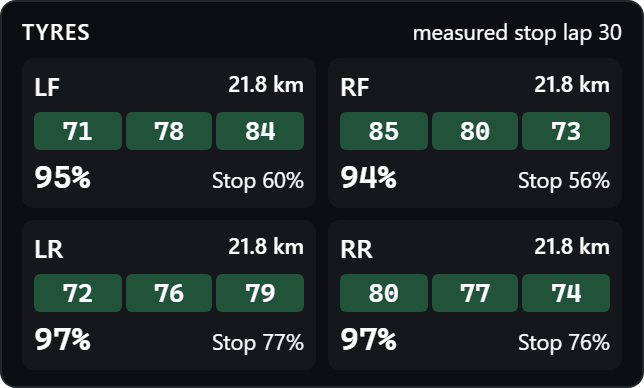
- Tyres: iRacing measures temperature and wear only at a pit stop. Shown are the measurement from the last stop and an estimate of how much tread is left now.
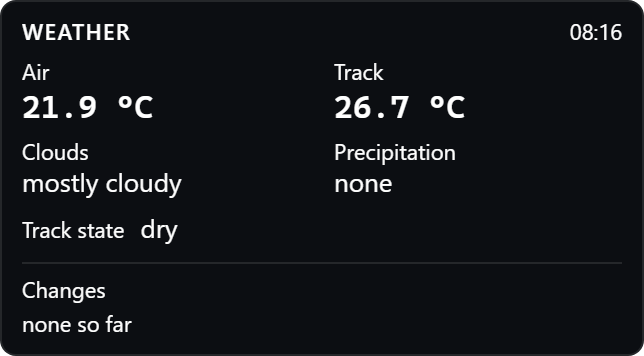
- Weather: air and track temperature (with a trend arrow over ~10 min), clouds, precipitation, track state and whether wet tyres are allowed – below that the changes during the race with time of day (e.g. "13:29 Clouds: overcast → mostly cloudy"). iRacing doesn't provide a forecast to StintView.
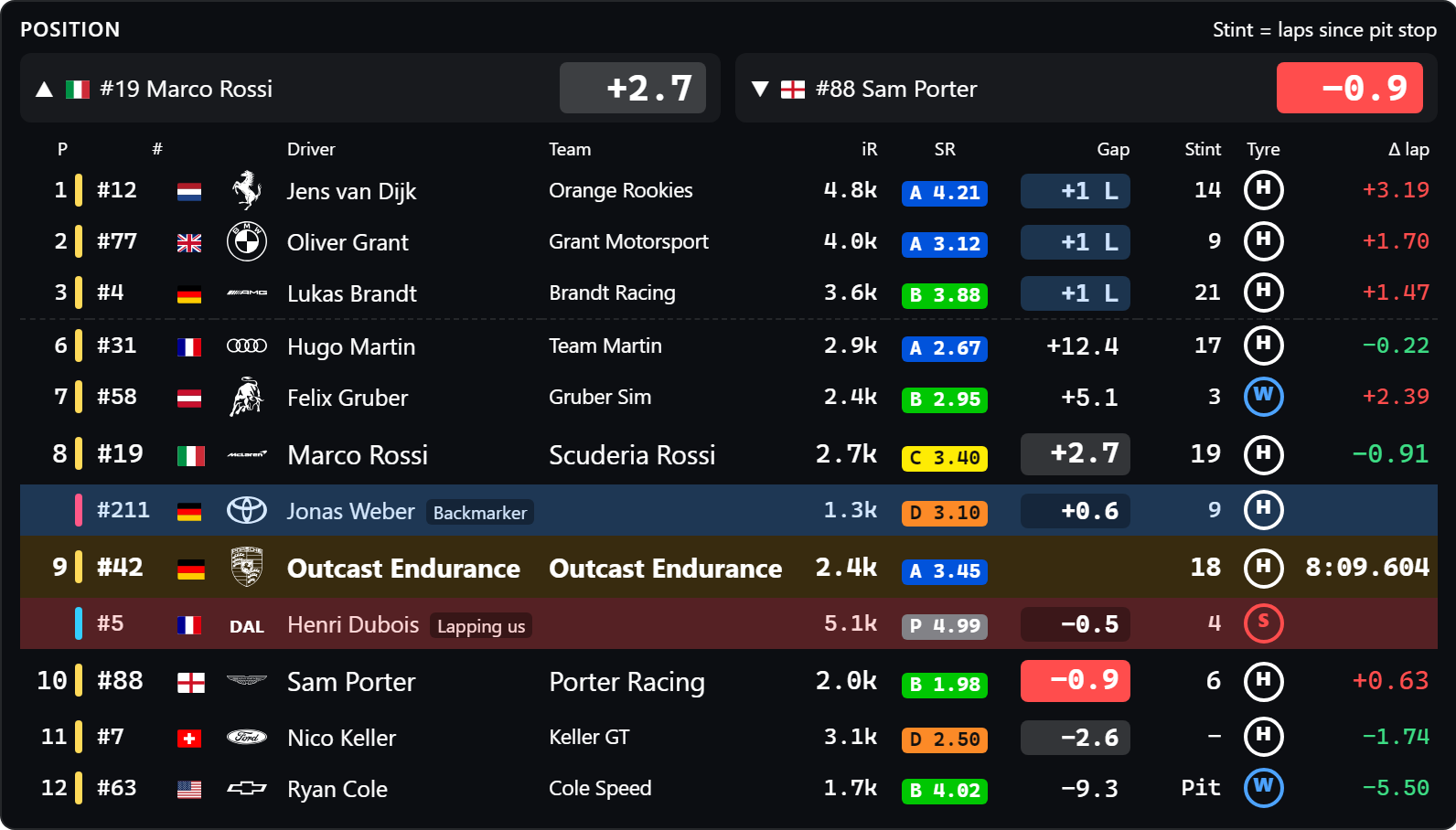
- Position: in practice and qualifying the panel shows iRacing's official standings instead (title "Best laps · Practice/Qualifying"): column Best lap (fastest valid lap) and Δ lap = your best minus theirs – red (+): you are slower, green (−): faster; gap, stint, duel line and lapping are not shown there. In the race: the running order on track (continuous, not iRacing's position that only updates once per lap), within your class in multi-class races: P1–3 plus three cars ahead of and behind you, with a country flag before the name (as in iRacing). Lapping: if the car right in front of you on track is a lap (or more) down, it appears as a blue row "Backmarker" above yours – you are about to lap it. If the car right behind you is a lap up, it appears as a red row "Lapping us" below yours – it is about to lap you. All classes (gap in seconds on track). Column Δ lap = your last lap minus theirs – red (+): you were slower, green (−): you were faster. Gap = time on track to you in seconds (+ ahead, − behind; whole laps as "+1 L"). The gap is shown as a coloured tile: under 1 s amber (car ahead within reach) or red (car behind right on you), 1–3 s white, further away without a tile, different lap blue. Your row and your direct class neighbours are larger; on top, a duel line shows the car in front (▲) and behind (▼) with a big gap (can be switched off in the panel settings). Stint = the lap of the stint being driven (1 = first lap after the stop) – exact for your car (from the tyres), for others since their last pit stop (iRacing doesn't tell whether tyres were changed); "–" = no stop seen yet (StintView keeps the stops across a restart of the app in the same session; stops while it was closed are missing), "Pit" = on pit road right now. At the bottom the panel shows the lap ("Lap 12 of 30" in races over a number of laps) and the session's time remaining – the Relative too. Right after the position, a narrow bar shows the class colour (as in iRacing) – handy for backmarkers and cars lapping you from other classes. In team races the team name follows the driver (races without teams don't have the column). In front of the name is the car make's emblem (makes without an emblem as a short name, e.g. "DAL" for Dallara). iR = the current driver's iRating (2.4k = 2400), SR = licence class and safety rating on iRacing's licence colour (e.g. "A 3.45"), Tyre = compound fitted: H hard, M medium, S soft (red), W wet (blue). Every column can be switched off in the panel settings, and you change the column order there by dragging (at the ⠿ handle on the left). StintView counts stops on every team member's PC, also while spectating – so keep iRacing open from the race start if possible.
- Duel (switch it on in the StintView window under Displays): one line – on the left the car in front (▲) you want to overtake, in the middle your car (position), on the right the car behind you (▼) in your class, with the gap as a tile in between (colours as in the Position panel). Below, a bar fills up the closer the rival is (empty from 3 s, full at 0 s), and below it Δ lap – as in the Position panel column: your last lap minus theirs, green (−) = you were faster, red (+) = slower. Next to it, small chips show the cars on other laps that are on track between you and that rival right now (all classes, up to 3 per side, the nearest right next to you): blue = you are lapping them, red = they are lapping you, outlined only = other class. So you see whether traffic gets in the way of an attack or defence. Can be switched off in the panel settings. In practice and qualifying the panel shows your position in large instead, then "→ P5" if the lap in progress would move you up (projection: your best lap plus what you gained/lost in this lap so far), then the next car you would still have to beat and the time still missing ("to find for P4"). Without a lap in progress (e.g. in the pits) it uses your best lap ("(best lap)"). StintView can't tell whether the lap stays valid.
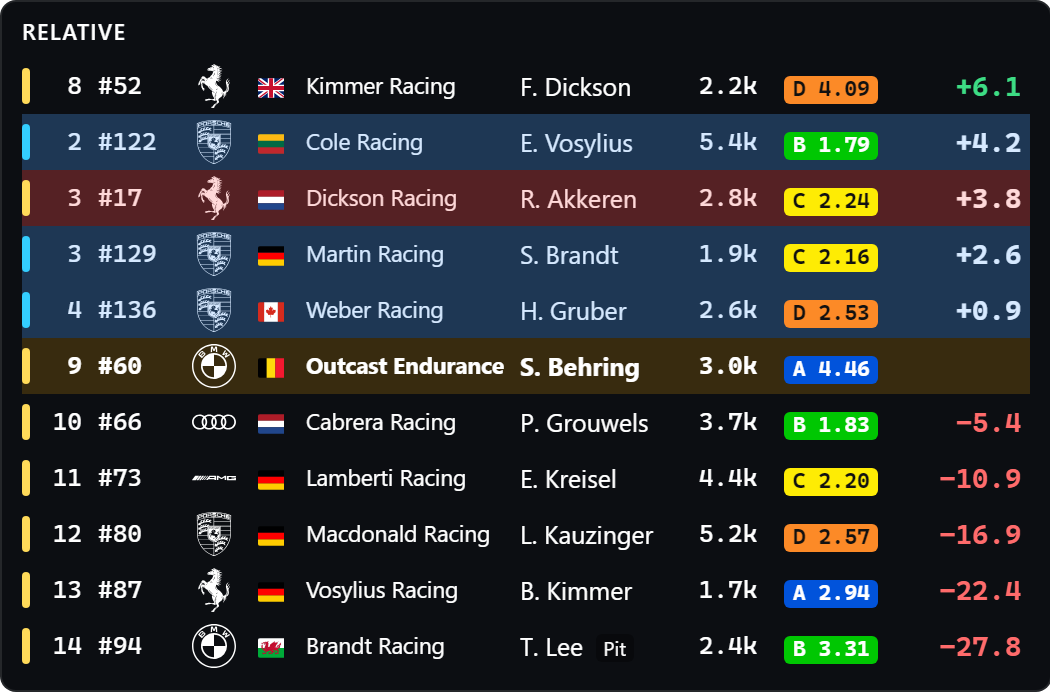
- Relative (switch it on in the StintView window under Displays): the 5 cars in front of and behind you on track – all classes, also in the pits –, front at the top, your car in the middle. Each row starts with a narrow bar in the class colour (as in iRacing), then position in the class, car number, make, flag, team (team races only), driver, iRating, safety rating and, in bold, the gap on track in seconds: green (+) = in front of you, red (−) = behind you. Blue row = a lap or more down on you (backmarker), red row = a lap or more up (lapping you). Every column can be switched off in the panel settings, and you change the order there by dragging (at the ⠿ handle on the left) – as in the Position panel.
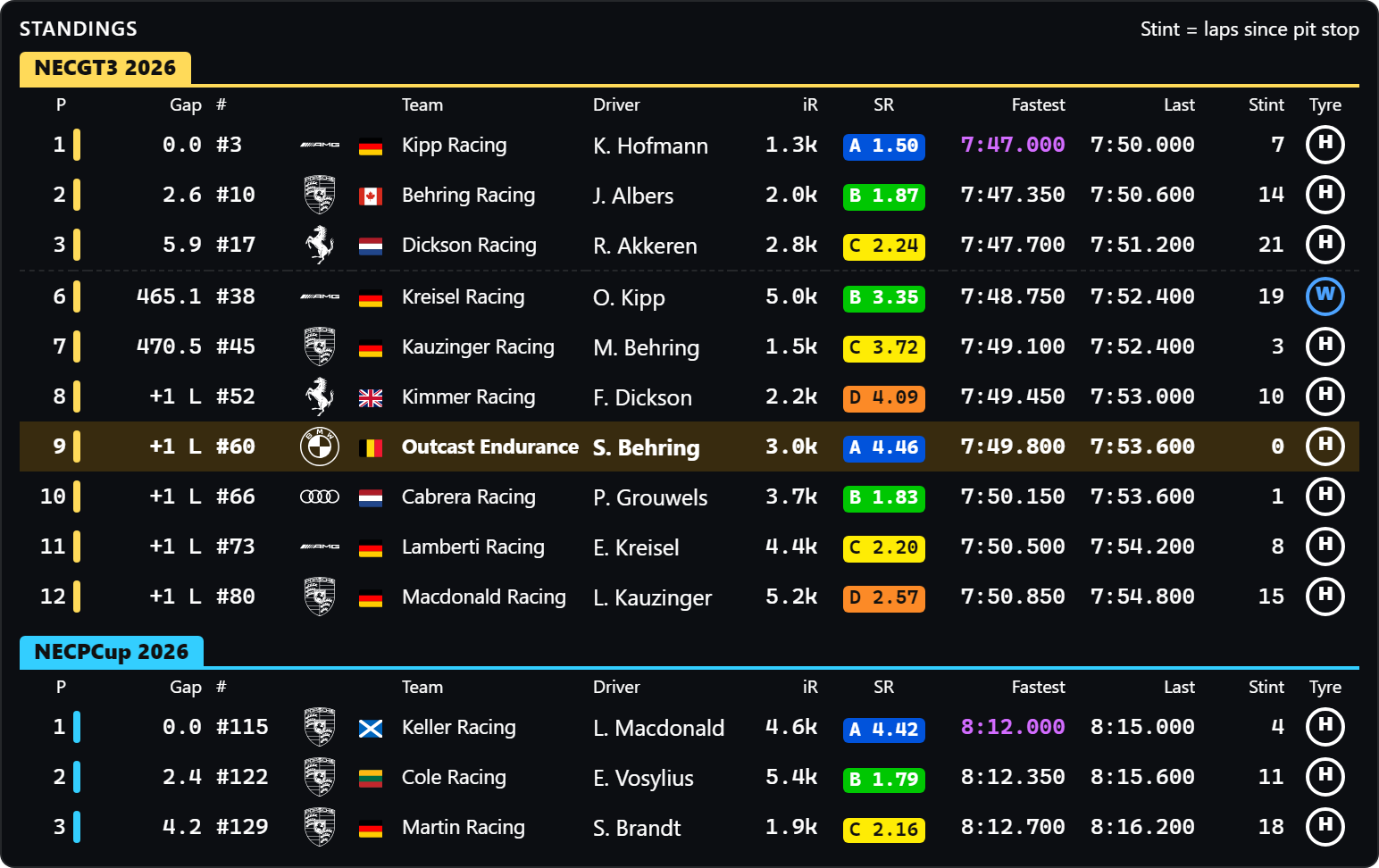
- Standings (switch it on in the StintView window under Displays): standings by class, fastest class first, each with its name in the class colour. Every car of every class. While nobody in the team is in the car (e.g. after qualifying) or when you watch a race, your own iRacing keeps standings, Position, Relative, Duel and "Incident ahead" going – iRacing has to run on your PC for that. If you are not entered in that race yourself, the displays follow the car your iRacing camera shows. Fuel, tyres and pit stop only come from the driver. Columns: position, class colour, gap to the class leader (seconds on the same lap, else laps, e.g. "+1 L"), car number, make, team (team races only), flag, driver, iRating, safety rating, fastest lap (purple = fastest in the class), last lap (green = personal best), stint (laps since the last pit stop) and tyre. In practice and qualifying by best lap, gap = best lap minus the class leader's. Switch columns off and move them as in the Position panel.
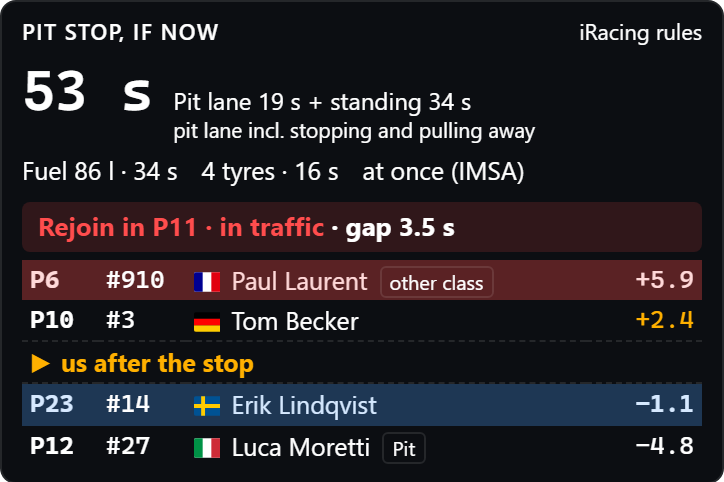
- Pit stop, if now: how long a stop with the pit settings in the car would take (pit lane drive-through including braking into the box and pulling away – about 2–3 s – + standing time for fuel, tyres, mandatory repair) and where you rejoin: class position, the two nearest cars ahead and behind (all classes, other laps included) with their current position in their class and the gap – red under 1.5 s (traffic), amber under 3 s, otherwise clear track. Cars on another lap have a coloured row: blue = backmarkers you lap, red = cars lapping you. Assumes the others don't stop at the same time (cars in the pits are marked). In practice and qualifying the panel is hidden; the Fuel panel shows there without "To the finish". Order and fuel rate are set by iRacing's regulations (standard: fuel first, then tyres; IMSA and NEC at once, NEC with slow pumps; DTM: GT3 at once with fast tyre changes). StintView usually recognises the regulation from the class name, otherwise standard applies (shown with "?"); selectable in the StintView window under Pit stop. The fuel rate comes from iRacing's rule table (percent of the tank per second per class), tyre change time is learned at every own stop (practice too) per series and car, and the pit lane drive-through from every car that pits (until then, 10 tracks use a value from our telemetry archive, shown as "(archive)"). Tip: in the StintView window, Pit stop → Read pit lane times reads your old telemetry files (.ibt) once and then knows the pit lanes of every track where you have pitted – takes a few minutes, later only new files. All measured values stay stored on your PC; until then the panel says "estimates". If you know the values beforehand, enter them there too.
In the StintView window under Displays: Background sets how transparent all panels are (0 % = transparent, 100 % = opaque; text stays fully visible). Below, every panel has a checkbox (shown or not); clicking its name opens its settings: Size (50–200 %) and, for the Position panel, which columns are shown, the duel line and whether lapping cars are shown; for the Duel panel, whether the cars on other laps in between are shown. Everything applies immediately.
#Updates
StintView checks for updates at start and hourly, and downloads them in the background. Once one is ready, StintView pops up a notification, and both the StintView window and the menu (right-click the icon) show "Install update … and restart" – one click, a few seconds, done. If you don't click, the update is installed on the next exit.
Check right away: "Check for updates" in the menu or at the bottom of the StintView window.
#Troubleshooting
| Message / problem |
Solution |
| "Windows protected your PC" |
More info → Run anyway (see step 1). |
| Antivirus blocks the installation |
Happens occasionally with unsigned programs. Only download from the official address above and allow it in your antivirus. |
| "Server not reachable" when joining |
Check the address (including :8787). Ask your team manager whether their server is running. |
| "Unknown invite code" |
Typo in the code – ask your team manager. |
| Status: No connection to the team server |
Server not reachable or not started. StintView reconnects automatically. |
| Status: encrypted connection required – update StintView |
The team server is newer than your StintView – quit and restart StintView (update), otherwise download the setup again. |
| Status: The team server shows a different certificate than when you joined |
Your team manager set up the team server again (e.g. a new PC without a backup) – then click Leave team in the Team tab and join again. If they didn't change anything, tell them: someone might be intercepting the connection. |
| Status: server speaks protocol v… |
Your version doesn't match the server – quit and restart StintView (update), otherwise download the setup again. |
| Status: In the car – standby |
Normal during a driver change: you are shown as soon as the previous driver has left the car. If it stays that way, you are in a different session than the team. |
| Overlay invisible on the monitor |
Set iRacing to borderless window. |
| Ctrl+Shift+O doesn't move anything (with AMD, their metrics overlay opens instead) |
The hotkey belongs to another program. The active StintView hotkey is shown in the window – or use the Move displays button. |
| VR: waiting for SteamVR |
Start SteamVR – StintView then connects automatically. |
| "iRacing didn't accept the camera switch" |
iRacing probably runs as administrator – Windows then blocks the camera control. Start iRacing normally (shortcut → Properties → Compatibility → untick "Run as administrator") or run StintView as administrator too. |
| The StintView icon is missing |
Start StintView from the Start menu. |
For other problems: choose Open logs in the menu and send recorder.log or server.log to your team manager.
Uninstall: Windows Settings → Apps → StintView. Your team credentials are kept in %APPDATA%\StintView.
#For the team manager
The team manager runs the team server – right inside StintView:
- Install StintView (step 1).
- In the window choose Create team (team manager), keep Run the team server on this PC ticked, enter team name and your name, click Create team.
- Windows asks whether StintView may accept connections – allow it.
- Under Team you now see the invite code and the server. Send the invite code and your public address with port, e.g.
example.dyndns.org:8787, to your team members.
So your team can reach you from the internet:
- Router port forwarding: forward TCP 8787 to your PC.
- Ideally set up a DynDNS name, so the address stays the same when your IP changes.
- Your PC with StintView must be running for the whole race – even while someone else is driving.
Team data is stored in the folder %APPDATA%\StintView\server: teams.json (team and access), planner.json (lap times and races of the stint planner), and tls-key.pem and tls-cert.pem – the certificate the server encrypts connections with. Back up the whole folder and take it along when you move to a new PC: without teams.json everyone has to join again, and without the two certificate files your team's apps report "different certificate" and have to join again as well. In the Team tab, This server's certificate shows the start of its fingerprint – your team members see the same value under Connection when everything is right. The stint planner uses the same port forwarding (TCP 8787); there is nothing else to set up.
Publishing a new version (in the project folder): git tag v0.2.1 and git push origin v0.2.1. GitHub then builds StintView-Setup.exe and publishes it; all installed copies of StintView update themselves.